Stream your own music with Navidrome, a Spotify alternative

Music streaming services like Spotify and Apple Music have revolutionized how we listen to music. However, for those of us who cherish our carefully curated music collections, these platforms can feel limiting. What if you could stream your personal library, just like a professional service, without monthly subscriptions? Enter Navidrome, an open-source music server that makes your entire collection accessible from anywhere.
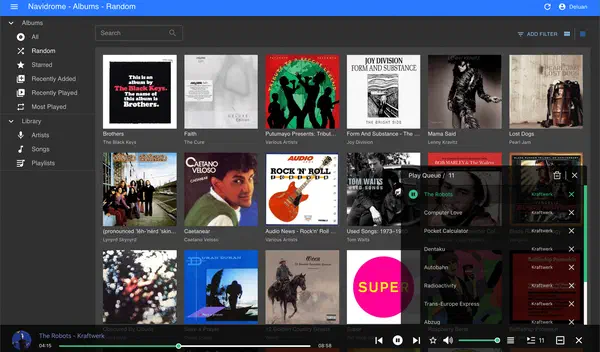
In this guide, we’ll show you how to set up Navidrome on a single board computer like the Raspberry Pi, turning it into your personal Spotify alternative.
Though the process is very simple, if you struggle in some parts of this guide, all the code seen in this guide will be hosted on the following GitHub repository so you can try it yourself.
Why Navidrome?
Navidrome is a lightweight and fast music streaming server. Here’s why it’s perfect for this project:
- Cross-platform support: Works on any device with a browser or a Subsonic-compatible client app.
- Lightweight: Minimal resource usage makes it ideal for SBCs.
- Customizable: Offers features like playlists, album artwork, and multi-user support.
- Privacy-first: Your data stays on your server, ensuring full control over your music.
What you’ll need
- Single-board computer: A Raspberry Pi 4 or similar.
- Storage: An SD card (32GB or more) and an external drive for your music collection.
- Operating system: Any Linux distribution.
- Network access: A stable internet connection.
- Docker Compose: Installed on your SBC.
- Navidrome: The software itself, available for free.
- Music library: Your personal collection ready for streaming.
1. Install Docker and Docker Compose
If Docker and Docker Compose aren’t installed yet, run the following commands:
# Update and upgrade package list
sudo apt update -y && sudo apt upgrade -y

# Install Docker
curl -fsSL https://get.docker.com -o get-docker.sh && sudo sh get-docker.sh

# Install Docker Compose
sudo apt install -y docker-compose

# Start the Docker service
sudo systemctl restart docker.service
Verify the installation:
docker --version
docker-compose --version
2. Set up Navidrome with Docker Compose
2.1. Create the project directories
mkdir -p ~/navidrome/{music,data} && cd ~/navidrome
Create a docker-compose.yml file in the directory with the following content:
services:
  navidrome:
    image: deluan/navidrome:latest
    restart: unless-stopped
    ports:
      - 4533:4533
    environment:
      ND_CONFIGFILE: /config/navidrome.toml
    volumes:
      - ./music:/music:ro
      - ./data:/data
      - ./navidrome.toml:/config/navidrome.toml:ro
2.2. Create the configuration file for Navidrome
See the official documentation about all the Available Options and Security Considerations for more information.
MusicFolder = "/music"
DataFolder = "/data"
PasswordEncryptionKey = "3c75433a8cfa642557778b233e21806d83f6bec895362afe4e95c61d0304e67a8d98c8"
The PasswordEncryptionKey must be unique and randomly generated. You can generate your own with your password manager like Bitwarden or with OpenSSL:
openssl rand -hex 35
2.3. Setup your music library
Finally copy all your music files and directories inside the music directory.
3. Start Navidrome
Now the most exciting part of the guide: running our own music streaming service.
sudo docker-compose up --remove-orphans --force-recreate -d
4. Verify your setup
It’s highly recommended to see the Docker Compose logs to check that everything is running correctly.
sudo docker-compose logs --tail 250 -f
At this point, the service now will be up and running, so the next thing to do is to create your first user. This will be your administrator user, a super user that can manage all aspects of Navidrome, including the ability to manage other users.
Just browse to Navidrome’s homepage at http://localhost:4533 and you will be greeted with a screen like this:
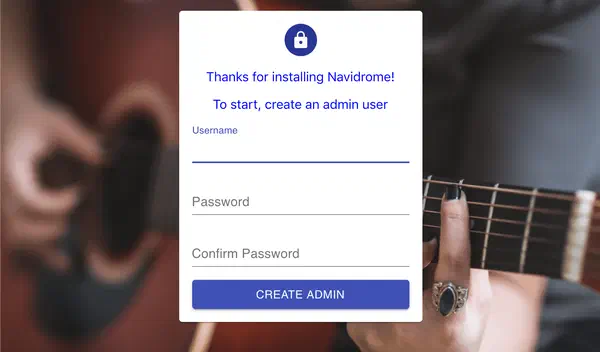
Just fill out the username and password you want to use, confirm the password and click on the “Create Admin” button.
That’s it! You should now be able to browse and listen to all your music.
Note: It usually take a couple of minutes for your music to start appearing in Navidrome’s UI. You can check the logs to see what is the scan progress.
Optional Enhancements
- Mobile access: Install Subsonic-compatible apps like DSub (Android) or Substreamer (iOS).
- Secure with HTTPS: Use Nginx as a reverse proxy and Let’s Encrypt for SSL certificates.
- Backup regularly: Back up your data and music directories to safeguard your collection.
With Navidrome on a single-board computer, you gain a private, customizable, and subscription-free music streaming service. It’s the perfect project for tech enthusiasts who value both functionality and privacy. Enjoy rediscovering your music library in a whole new way!
Feel free to share your setup or questions in the comments below. Happy streaming!